Agents & Automation
Create an Agent
- Open Manage Agents and choose New Agent.
- Choose what starts the work: a schedule, incoming event, or price condition.
- Enter a name and clear instructions, then configure the cadence or matching conditions.
- Review the model, workspace or environment, and allowed connected-service actions. Advanced settings reveal additional controls.
- Save the Agent. An incoming-event Agent can be created paused so you can review its configuration before enabling it.
For example: “Review the workspace and summarize what changed since yesterday. Include the relevant files and any items that need my decision.” Choose the schedule and model that fit that request.
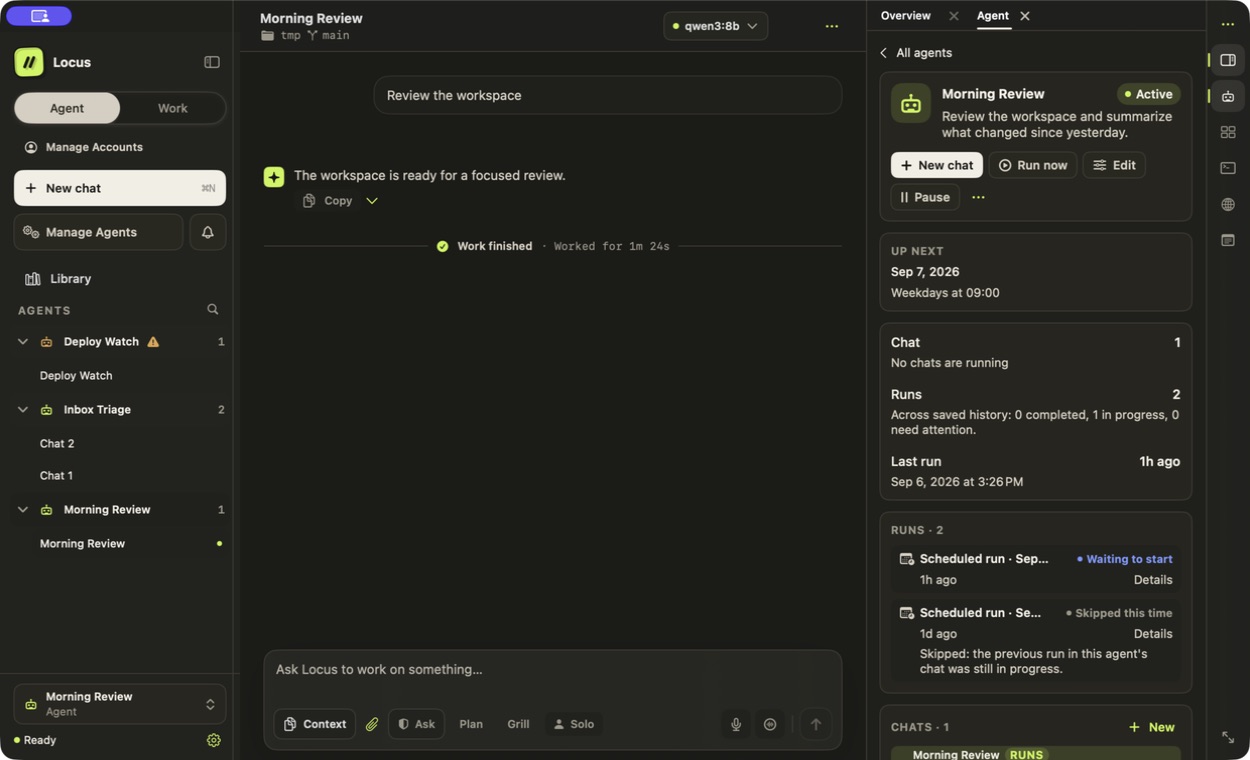
Demonstration data: the Agent panel distinguishes an enabled Agent from running chats and shows individual scheduled occurrences.
Find configuration and activity
| Section | Use it for |
|---|---|
| Agents | Search and filter configured Agents; inspect instructions, triggers, access, and recent activity |
| Activity | Review recent schedule and event records, filter by Agent or status, and inspect supported retry actions |
| Connections | Review shared source connections, their health, last check, and which Agents use them |
| Runtime | Set shared local concurrency and execution context; open specialist and team settings |
The right Agent panel follows the selected Agent. Overview follows the open conversation. Runs shows that chat's executions. Activity's recent list is an entry point; the contextual inspector carries the exact durable record and its available evidence.
Triggers and service access
Incoming events can use configured Gmail, Telegram, or signed webhook sources. Price conditions use configured price sources and a symbol or threshold. Each Agent currently has one trigger.
A connection used to receive events is separate from permission to perform service actions. Grant only the action connections that the task needs. Clearing every action grant keeps the selection empty. Webhook and price-feed identifiers are not action grants.
Tool approval mode is shared across chats and worker runtimes. The Agent's workspace, environment, and service restrictions still apply. Selecting a hosted model does not turn the Agent into a cloud service.
Workflows and Attention
Automation workflows can sequence Agent, Condition, and Approval steps. The simulator previews templates, branches, outputs, and approval cards without calling a model or creating chat history.
Each occurrence records its workflow, attempts, and approval state. After interruption or failure, inspect the occurrence before resuming. An uncertain external action is not silently repeated.
Attention collects questions, permissions, workflow approvals, recoverable runs, retryable failures, and configuration warnings that need a decision. Routine successful activity belongs in Activity.
Pause, run, and recover
Use Pause to stop automatic triggering and Run now for supported manual runs. Read an occurrence's status before retrying: receipt, delivery, and execution outcomes are distinct. A previous successful chat does not make a later failed or cancelled delivery successful.
Locus must be running and the Mac available for work to execute. Quitting does not leave a cloud worker behind. Review connection errors, missing accounts, and interrupted actions before restarting work.
For ongoing work in an ordinary chat, use Persistent Goals. For a saved model-to-model plan, use Task Capsules. Reusable model profiles are configured under Specialists & teams.